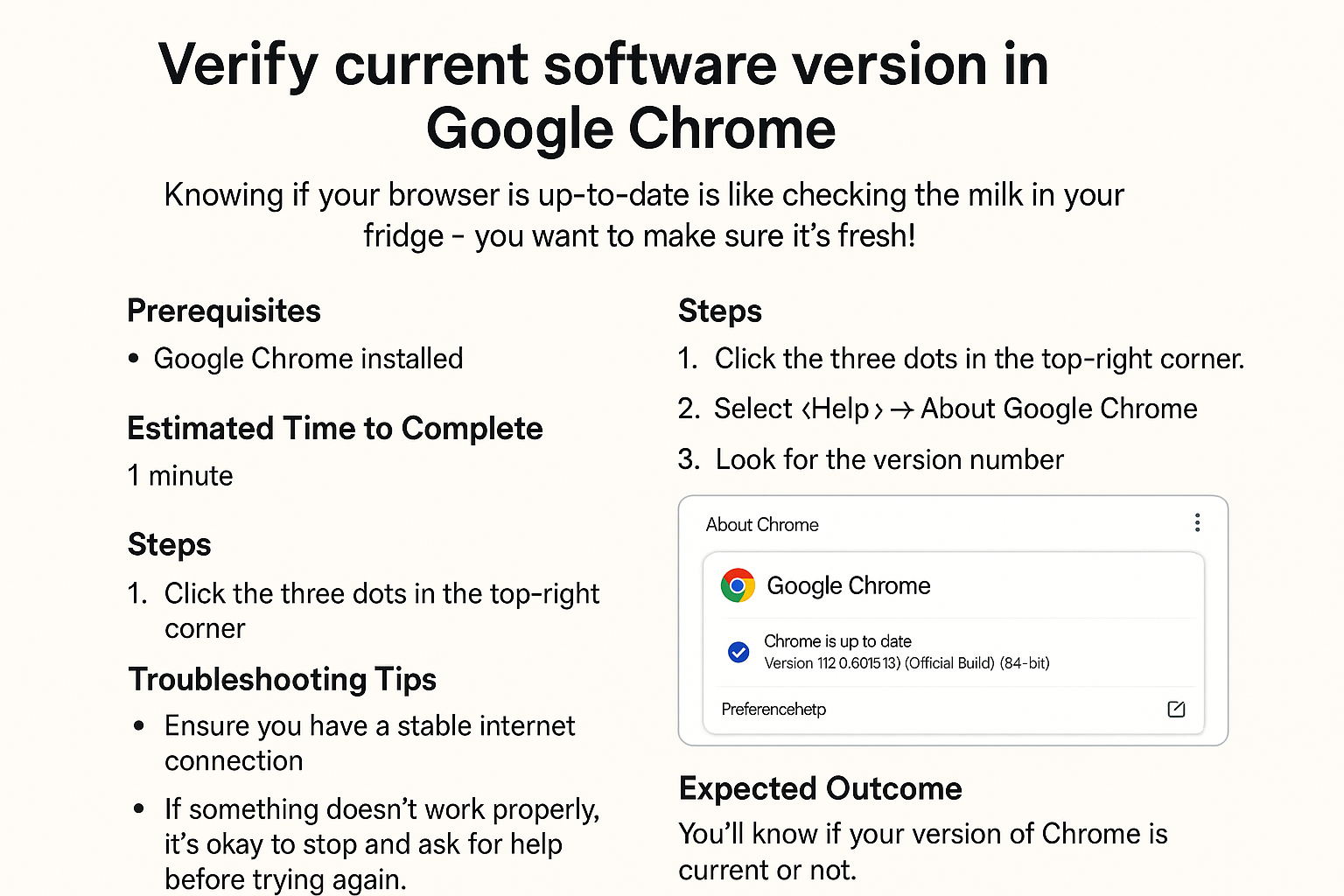
Verify current software version in Google Chrome
If you don’t check, things might not work as well, or worse, you could face security risks. Fortunately, verifying the version of Google Chrome you’re using is quick and easy! Let’s get started.
Prerequisites
- A computer with Google Chrome installed.
- Internet access (to ensure the latest updates).
Estimated Time to Complete
Approximately 5 minutes.
Steps
- Open Google Chrome
Locate the Google Chrome icon on your desktop or in your taskbar, and double-click it to open.
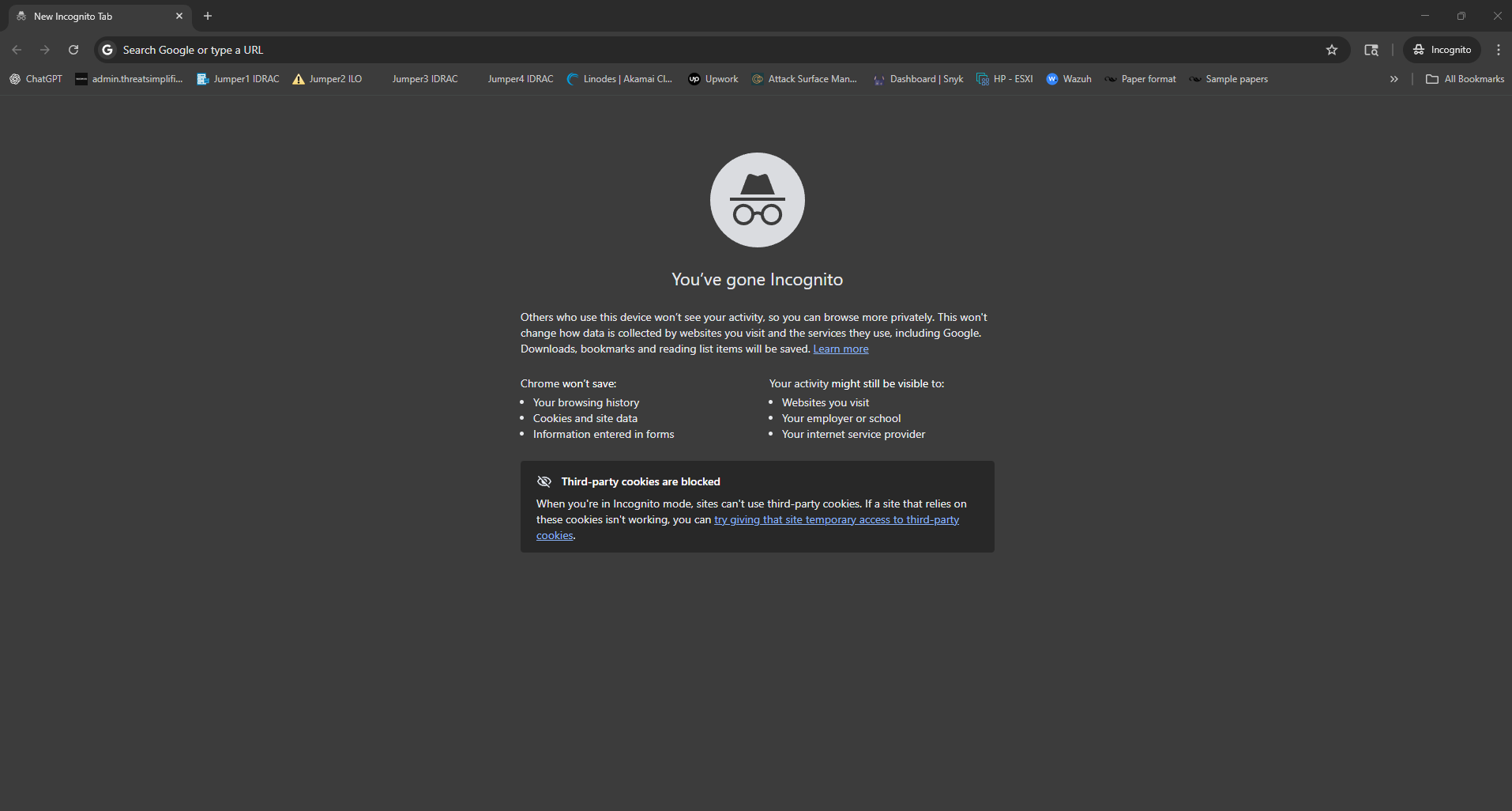
- Access the Menu
Look at the top right corner of the Chrome window. You’ll see three vertical dots (also known as the More menu). Click on that.
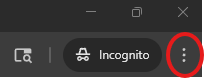
- Go to Help
In the drop-down menu, hover over the “Help” option. A submenu will appear.
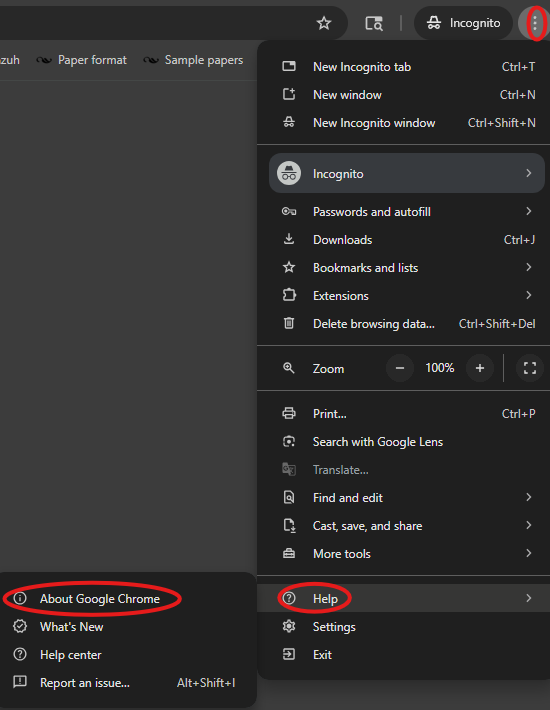
- Select About Google Chrome
Click on “About Google Chrome” from the submenu. This will open a new tab with information about your current version.
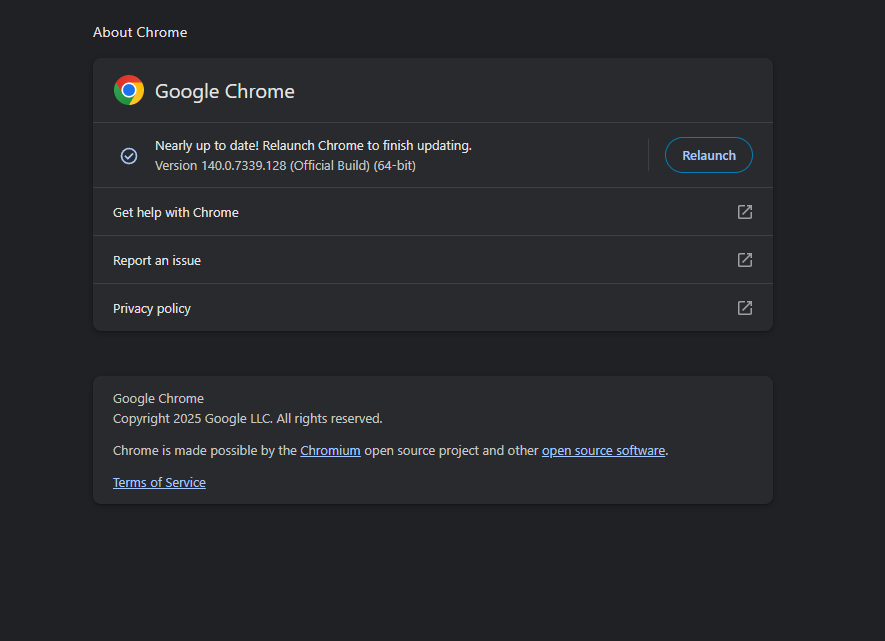
- Check Your Version
On the new page, you will see your current version of Google Chrome displayed prominently. The browser will also automatically check for updates.

- Update if Needed
If an update is available, you’ll see an option to update Chrome. Click “Relaunch” to install any updates.

Troubleshooting Tips
- Can't find the More menu? Make sure you’re using Google Chrome and look closely at the upper-right corner.
- Chrome doesn’t update? Check your internet connection to ensure you’re online. If you’re still having issues, try closing Chrome and reopening it.
If you’re unsure, it’s okay to stop and ask for help before trying again.
Expected Outcome
After completing these steps, you will know the version of Google Chrome you’re using, and you will have the option to update to the latest release for improved security and features.
Password Safety Tip
As a good practice, if prompted for a password anywhere, use at least 12 characters with a mix of letters, numbers, and symbols. Avoid names or birthdays.
Keeping your browser up-to-date is an important part of maintaining your online security. Happy browsing!