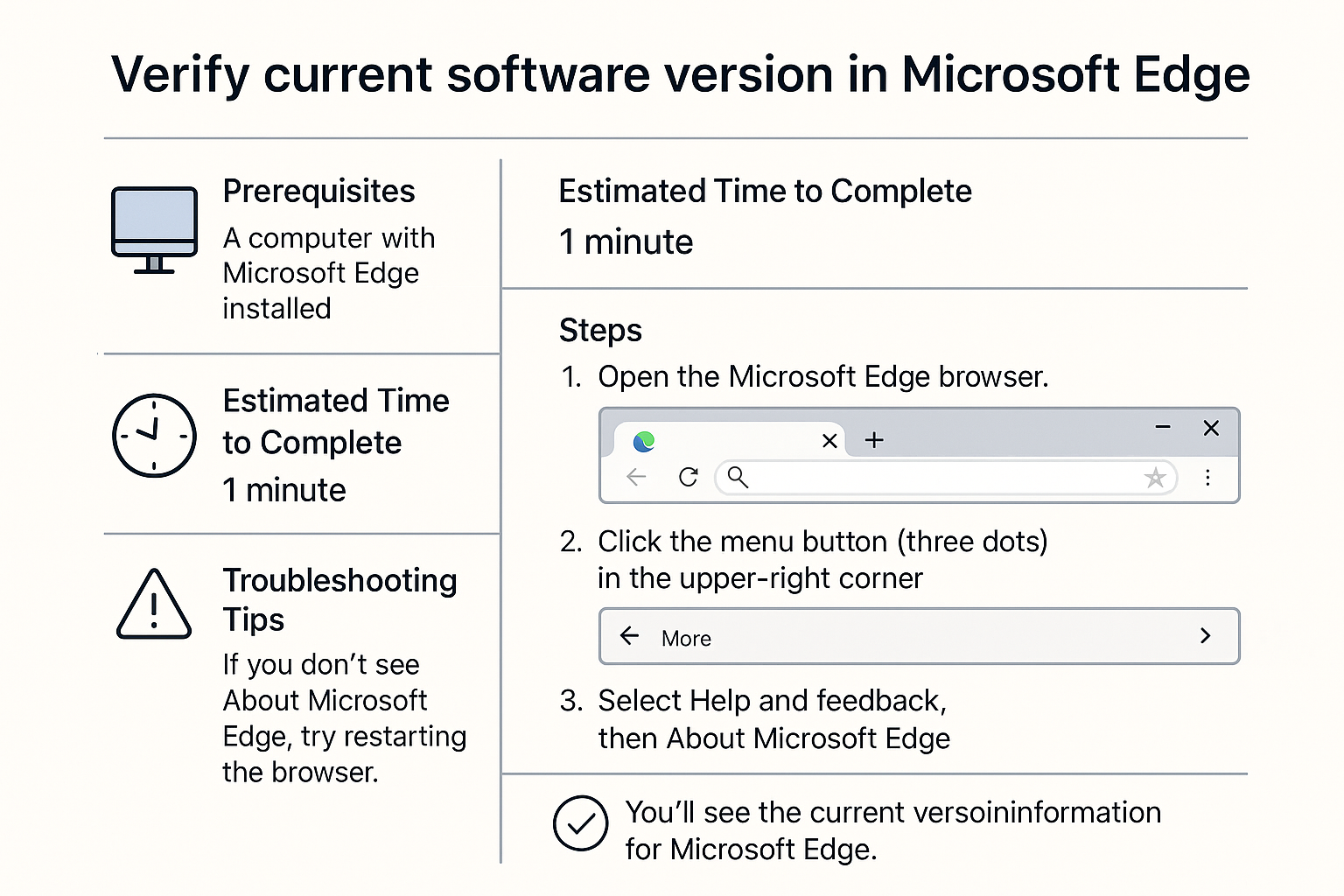
Verify Current Software Version in Microsoft Edge
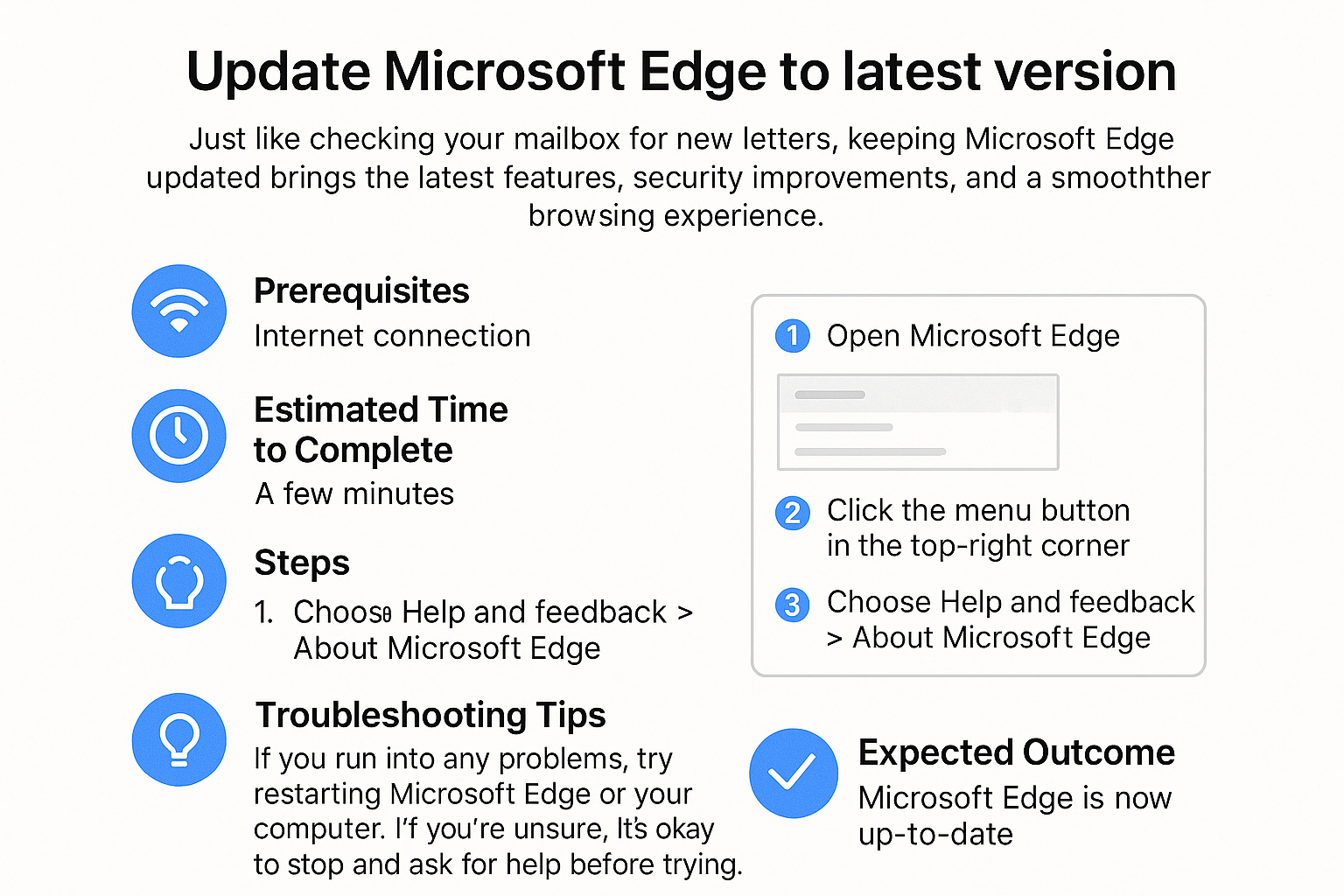
Just like you wouldn't drive a car with outdated parts, using an old version of your browser can expose you to security risks and prevent you from accessing the latest features. Let’s ensure your Microsoft Edge is running smoothly!
Prerequisites
- A computer with Microsoft Edge installed.
- Internet connection (for potential updates).
Estimated Time to Complete
- About 5 minutes.
Steps
-
Open Microsoft Edge
Locate the Microsoft Edge icon on your desktop or in your start menu, and double-click it to open.

-
Access Settings
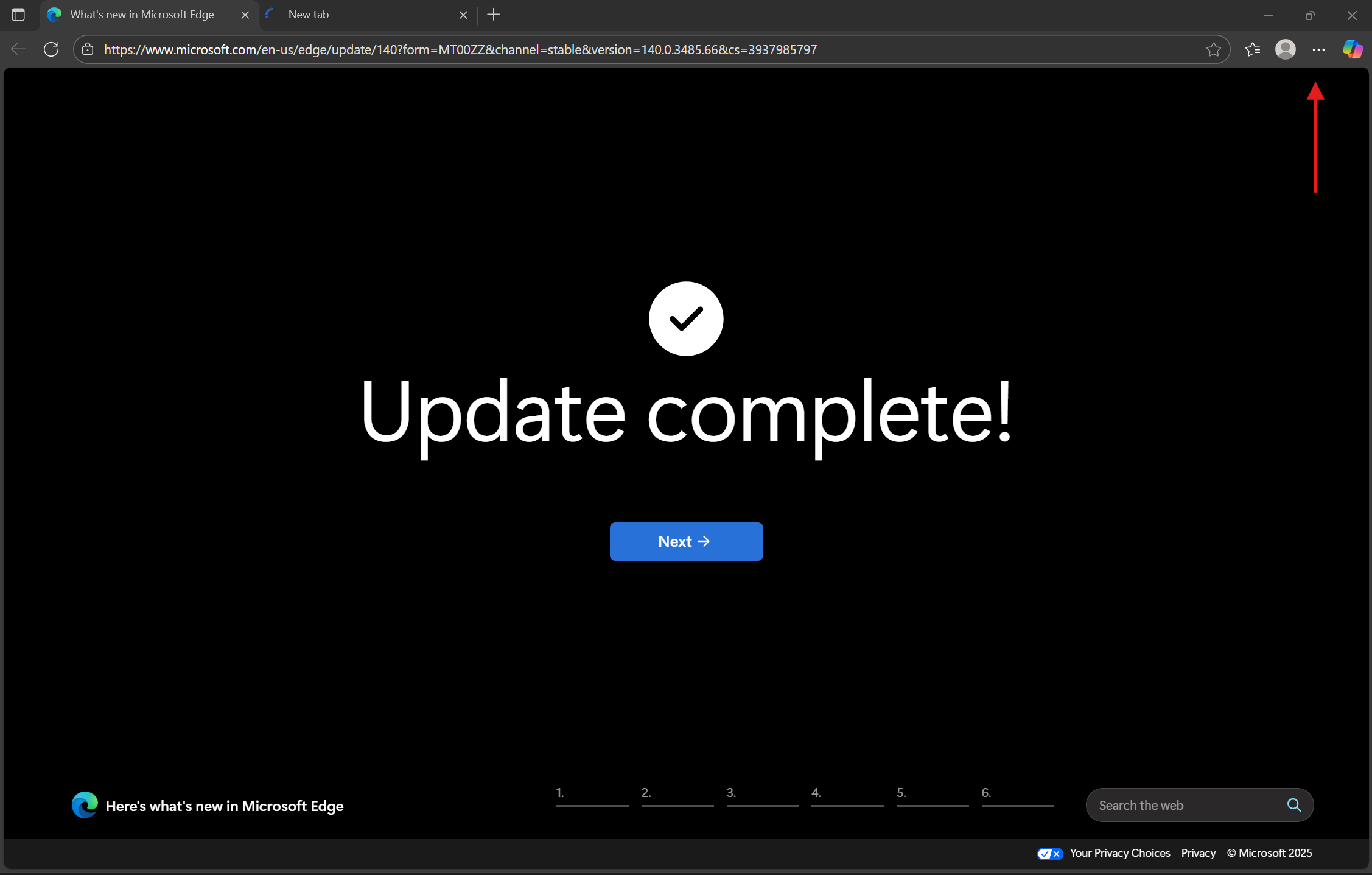
Click on the three horizontal dots (menu) in the upper right corner of the window to open the menu.
-
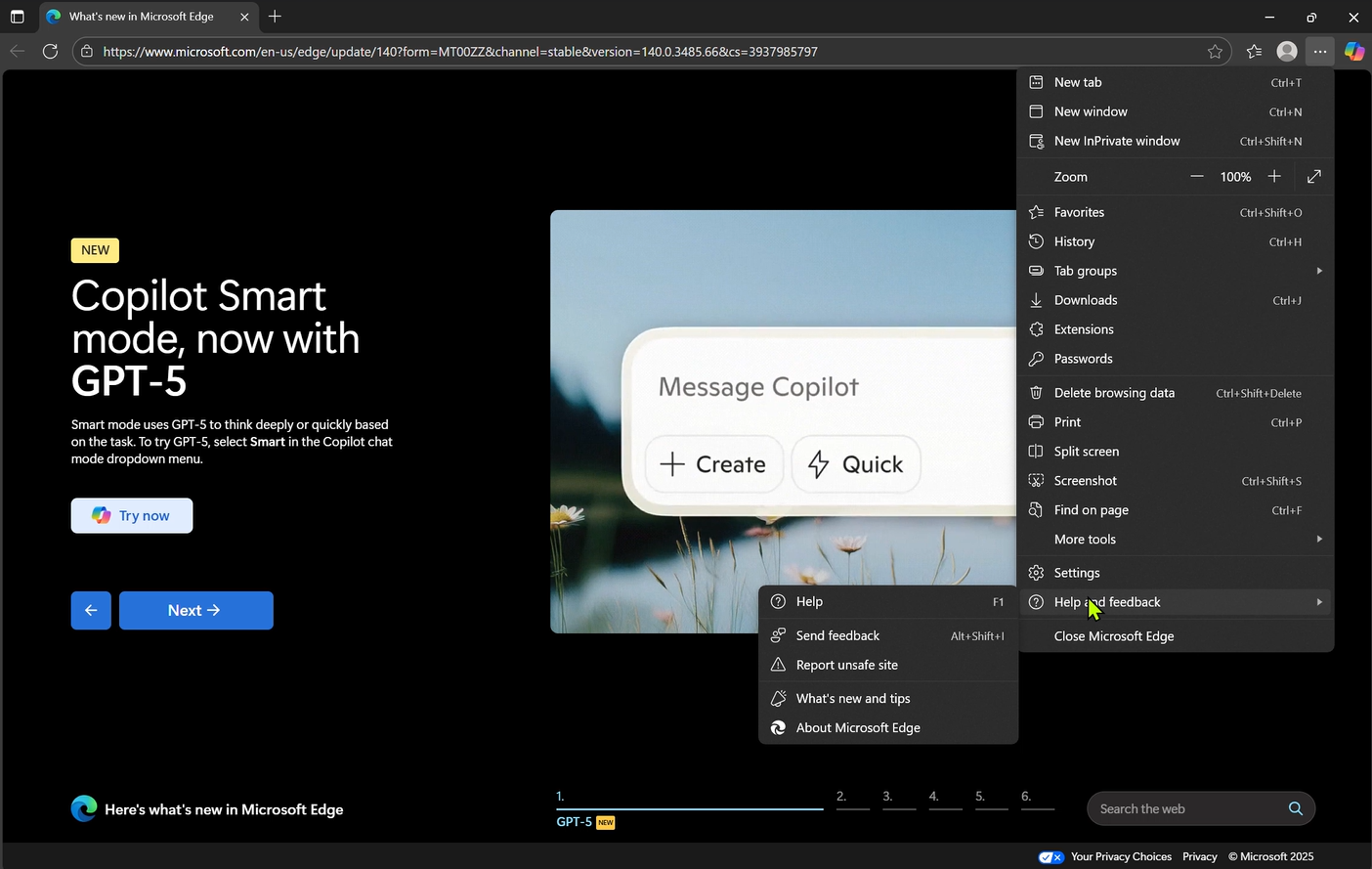
Select 'Help and feedback'
From the drop-down menu, hover over 'Help and feedback' to see more options.
-
Click on 'About Microsoft Edge'
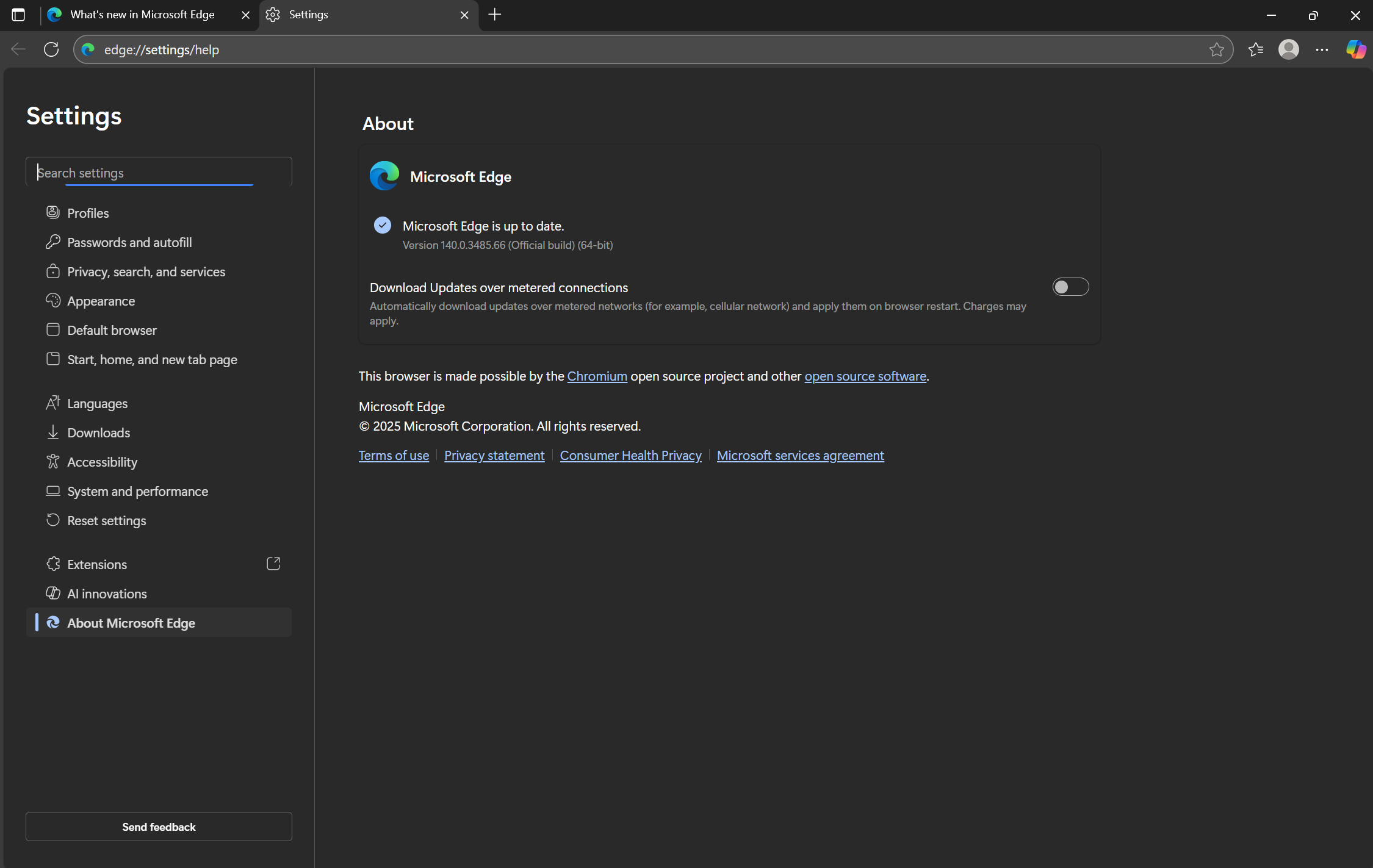
In the expanded menu, click on 'About Microsoft Edge'. This will take you to the version information page.
-
View Version Information
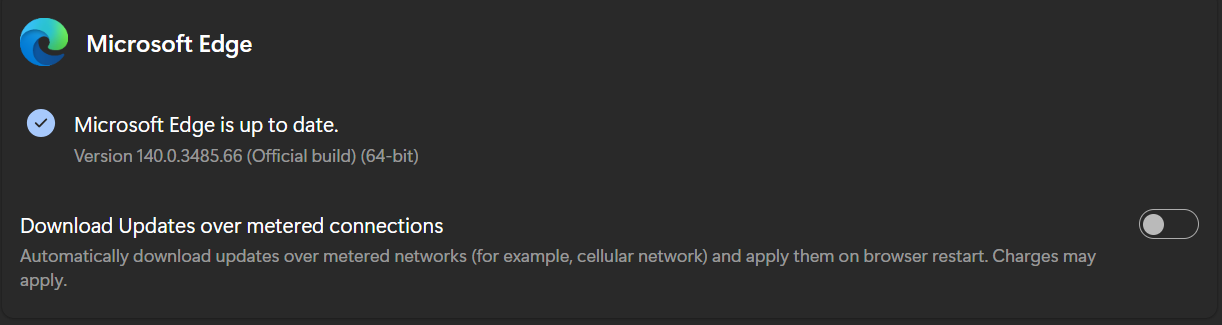
Here, you will see your current version of Microsoft Edge. If an update is available, it will automatically start downloading.
-
Restart Edge (if needed)
If an update was downloaded, you may need to restart Microsoft Edge. Simply close the browser and reopen it.
Troubleshooting Tips
- Can't find Microsoft Edge? Make sure it is installed on your computer. You can download it from the official Microsoft website if necessary.
- Update not downloading? Check that your internet connection is working. If it’s still not working, try restarting your computer and repeating the steps.
If you’re unsure, it’s okay to stop and ask for help before trying again.
Expected Outcome
You should now see the current version of Microsoft Edge, and if needed, the latest version will be downloaded and installed!
Password Tip
When updating software or creating accounts, use at least 12 characters with a mix of letters, numbers, and symbols. Avoid names or birthdays.
Taking these simple steps will help keep your browsing experience safe and secure!