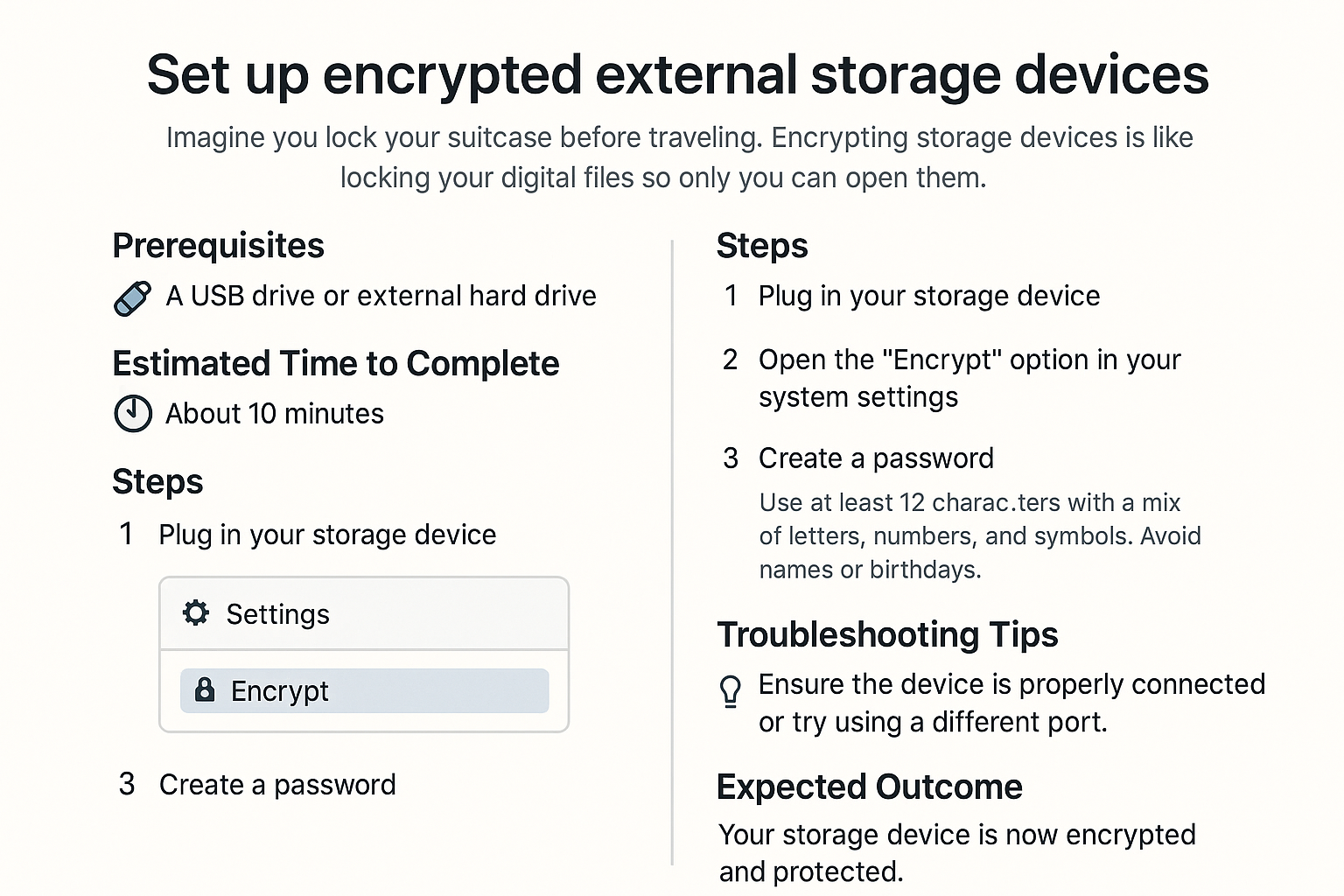
Set up encrypted external storage devices
In today’s digital world, keeping our personal information safe is as important as locking your front door. Just like you wouldn’t want someone rifling through your belongings, you don’t want unauthorized access to your digital files either. Setting up encrypted external storage devices is a fantastic way to protect your data, just like putting your valuables in a safe. Let’s walk through this step by step!
Prerequisites
Before we start, make sure you have:
- An external storage device (like a USB drive or an external hard drive).
- A computer (Windows or Mac) to connect the storage device.
- Basic understanding of how to connect devices to your computer.
Estimated Time to Complete
This task should take about 20-30 minutes.
Steps
-
Connect Your External Storage Device
- Plug your external storage device into a USB port on your computer.
- Wait for your computer to recognize it.
-
Open the Encryption Tool
- On Windows, search for “BitLocker” in the Start menu.
- On Mac, open “Disk Utility” from the Applications folder.
-
Select Your Device
- In the BitLocker or Disk Utility, find your external storage device in the list and select it.
-
Start the Encryption Process
- For Windows, click on “Turn on BitLocker” and follow the prompts.
- For Mac, choose “Erase” and select “Mac OS Extended (Journaled)” then check the box for “Encrypt.”
-
Choose a Strong Password
- You’ll be prompted to create a password to unlock the device. Use at least 12 characters with a mix of letters, numbers, and symbols. Avoid using names or birthdays!
-
Complete the Encryption
- Once you set the password, follow the instructions to finish the encryption process. This may take some time.
-
Safely Eject Your Device
- After encryption is complete, make sure to safely eject the device before removing it.
Troubleshooting Tips
- Device Not Recognized:
- Make sure the USB is fully inserted and try a different port.
- Forgotten Password:
- If you forget the password, there may be recovery options provided during setup. Make sure to keep that information safe!
- Encryption Is Taking Too Long:
- Depending on the size of the storage device, encryption could take longer. Be patient!
If you’re unsure, it’s okay to stop and ask for help before trying again.
Expected Outcome
By following these steps, you should have successfully set up your encrypted external storage device. Your files are now more secure, just like keeping valuables in a locked safe! Feel free to reach out if you have questions along the way. Enjoy your secure digital storage!