Enable secure wireless protocols (WPA3) on router
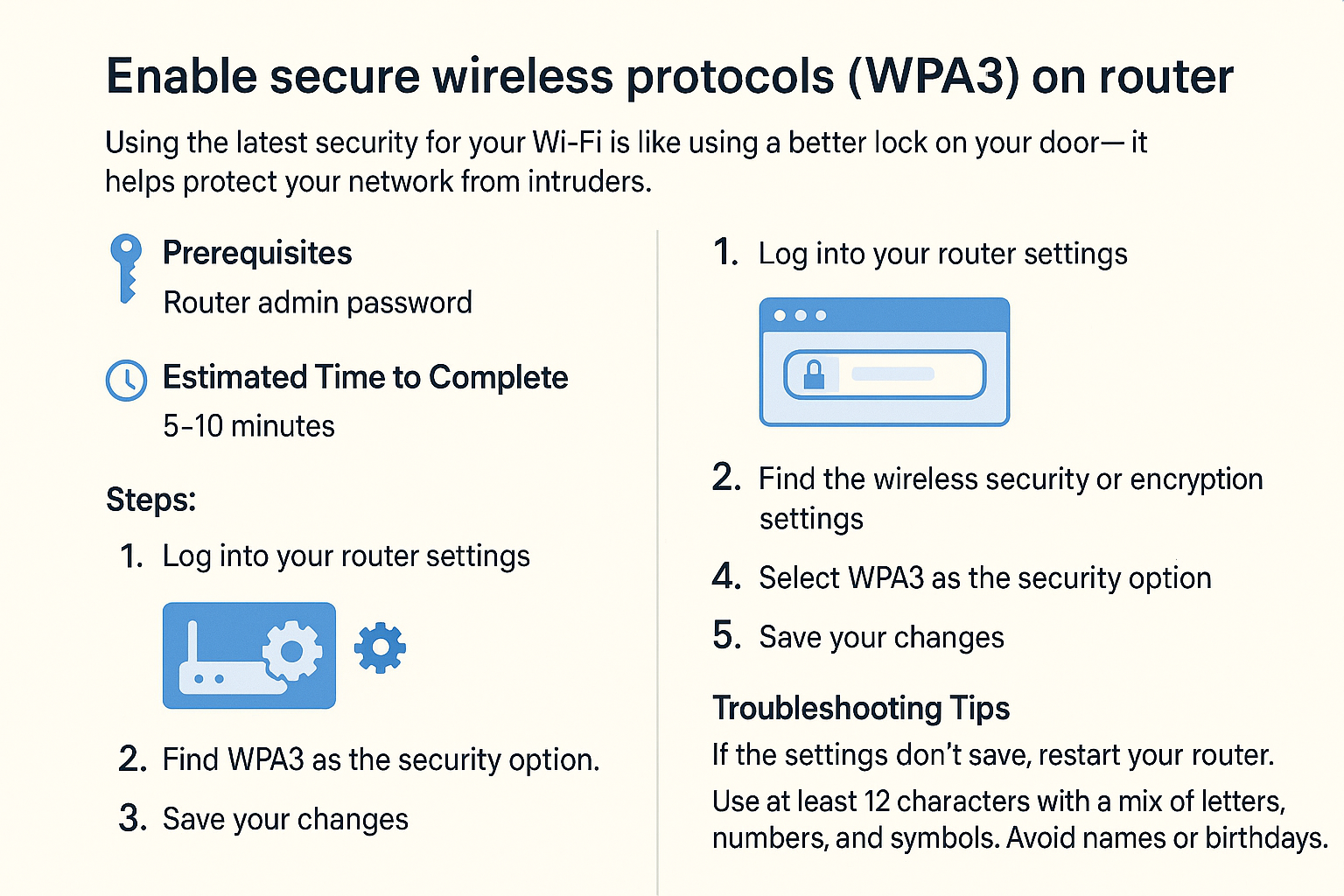
Just as you'd want to ensure that only trusted friends can enter your home, using secure wireless protocols like WPA3 helps keep your internet connection safe from prying eyes. Let's take a step-by-step approach to enable WPA3 on your router, so you can enjoy peace of mind while browsing the web!
Prerequisites
- A Wi-Fi router that supports WPA3. Check your router’s manual or manufacturer's website for details.
- A computer or smartphone connected to your network.
- Basic understanding of how to access your router's settings.
Estimated Time to Complete
This task should take about 15-30 minutes.
Steps
-
Connect to Your Router
- Make sure you're connected to your Wi-Fi network using a computer or mobile device.
-
Open Your Web Browser
- On your computer or smartphone, open a web browser (like Chrome, Firefox, or Safari).
-
Access Your Router’s Settings
- Type your router's IP address into the browser’s address bar. Common addresses are
192.168.0.1or192.168.1.1or10.0.0.1. Press Enter. - You may need to log in. Common usernames and passwords are often "admin" for both, but check your router’s documentation if unsure.
- Type your router's IP address into the browser’s address bar. Common addresses are
-
Navigate to the Wireless Settings
- Look for a section that says "Wireless" or "Wi-Fi Settings" in the router's menu.
-
Choose WPA3 as Your Security Protocol
- In the wireless settings, find the option for "Security" or "Encryption."
- Select WPA3 from the dropdown menu. This is the most secure option available.
-
Create a Strong Password
- Set a strong password for your Wi-Fi. Remember, it should have at least 12 characters with a mix of letters, numbers, and symbols. Avoid using easily guessable info, like names or birthdays.
-
Save Your Changes
- After making your selections, look for a button that says "Save" or "Apply" and click it.
-
Restart Your Router
- Some routers may require a restart to apply the changes. If prompted, follow the on-screen instructions.
-
Reconnect to Your Network
- Once your router restarts, you’ll need to reconnect to your Wi-Fi using the new password you created.
Troubleshooting Tips
- Can't Access Router Settings: Ensure you are connected to the network. Verify the IP address and login credentials are correct.
- WPA3 not available: If you don’t see the option for WPA3, your router may not support it. Check your router's documentation or consider updating your firmware.
- Connection Issues After Changing Settings: If you have trouble connecting to your Wi-Fi, double-check that you've entered the new password correctly.
If you’re unsure, it’s okay to stop and ask for help before trying again.
Expected Outcome
Once you’ve finished these steps, your Wi-Fi network should be protected with WPA3, providing a stronger defense against unauthorized access. Your devices will now communicate over a safer connection, making your online activities much more secure.
Enjoy your safe browsing experience!