Configure Automatic Security Patch Validation
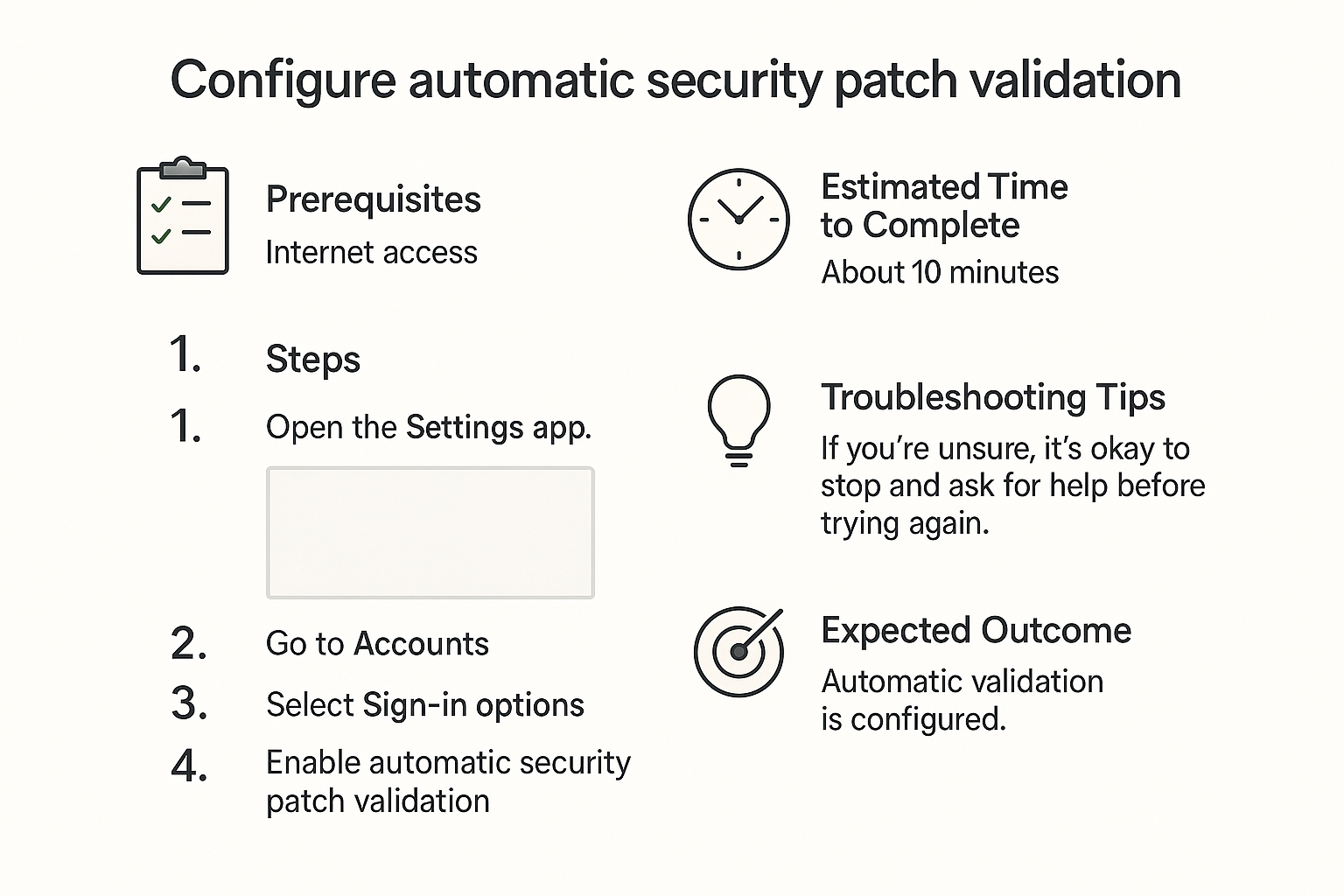
Automatic security patch validation lets you check that your system is receiving critical updates without having to do it manually. This guide will help you set up automatic security patch validation and give you peace of mind while using your computer!
Prerequisites
- A Windows or macOS computer with administrative rights.
- Internet connection to download updates.
- Basic computer knowledge (you should know how to navigate your operating system).
Estimated Time to Complete
Approximately 10–15 minutes.
Steps
-
Open Windows Update Settings (Windows Users)
Click on the Start Menu, and select Settings (the gear icon). Then select Update & Security. -
Check for Updates
In the Windows Update section, click on Check for updates to manually initiate the update process. -
Enable Automatic Updates
On the same page, ensure the option "Automatically download updates" is selected. This will help keep your security patches validated without disturbing you. -
Select Active Hours
Under the Change active hours section, set the hours when you typically use your computer. This helps Windows schedule updates for a time when you’re not using your device. -
Enable Security Updates Notifications (macOS Users)
Go to System Preferences by clicking the Apple icon on the top left, then select Software Update. Check the box for "Automatically keep my Mac up to date." -
Run Software Updates
On the Software Update page, run updates to ensure you are currently protected. Your Mac will automatically check for and install available updates. -
Check Patch Validation Settings (Optional)
For advanced users, you can use additional tools (like Windows Security or third-party software) to check the validation status of patches.
Troubleshooting Tips
- If your updates do not download, ensure your internet is working.
- If you receive error messages, search online for the specific error code for guidance.
- Restart your computer if the update process seems stuck, and try running the update again.
- Check if your antivirus or firewall settings are blocking the updates.
If you’re unsure, it’s okay to stop and ask for help before trying again.
Expected Outcome
By completing this guide, you should have automatic security patch validation configured on your computer. This means your device will automatically check for and install security updates, helping to protect your information and keep your computer running smoothly.
Password Tip
For any related accounts, remember to create strong passwords by using at least 12 characters with a mix of letters, numbers, and symbols. Avoid using names or birthdays to enhance your security.
Now your system is better equipped to keep you safe! 🛡️